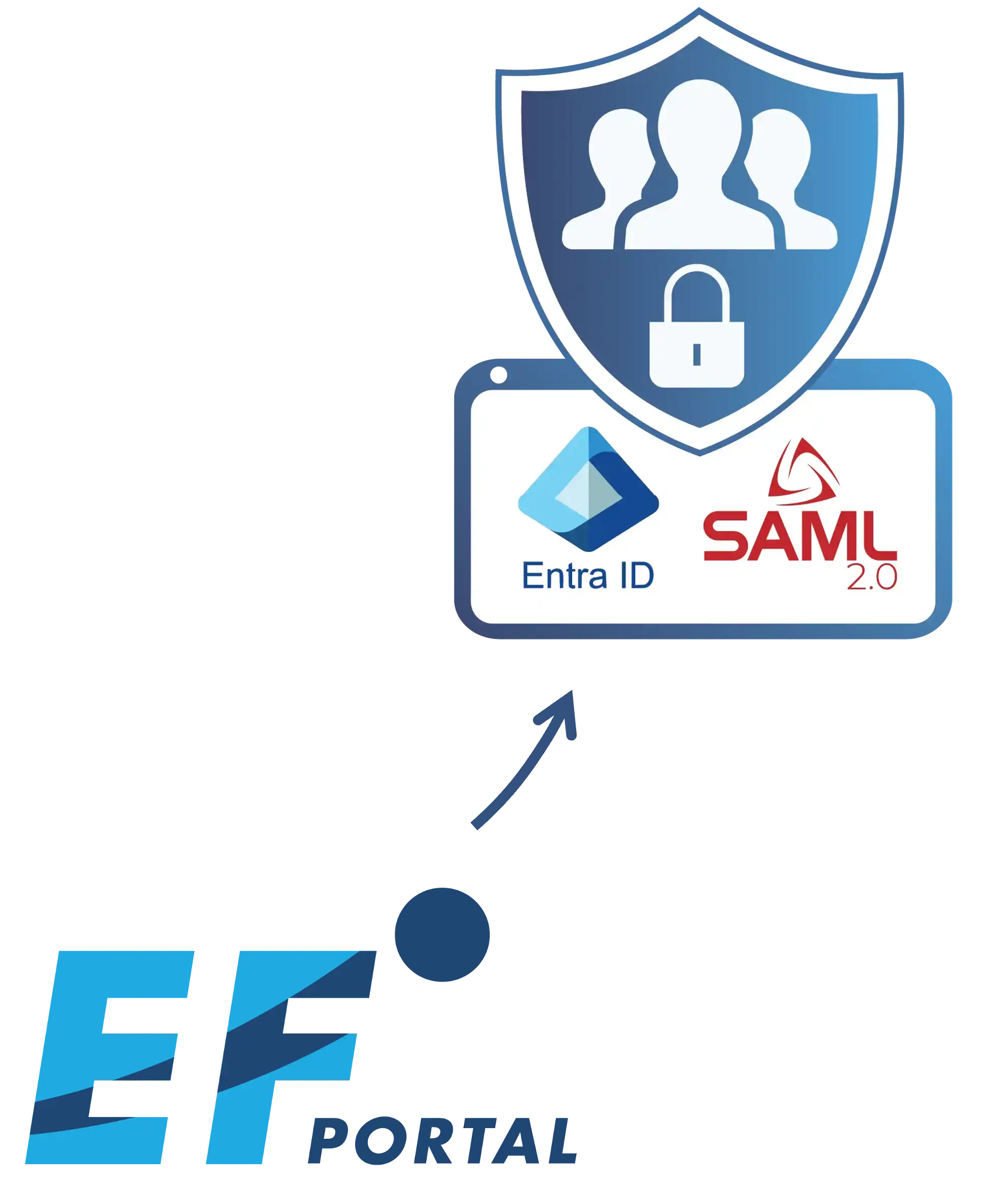
Connecting EF Portal to Microsoft Entra ID takes one configuration file and a restart.
Your users sign in with the Microsoft account they already have, your conditional access and MFA policies keep applying because Entra still does the authenticating, and nobody on your team has to maintain a side stack of web server modules and callback scripts.
This guide covers the whole setup over SAML 2.0: registering EF Portal in Entra, the six lines that go into sso.conf, and the one prerequisite that decides whether the first login works, which is how a Microsoft identity becomes a Linux user. SAML is the easy half, the identity mapping is the part worth planning. The configuration shown here is the one our own engineers run against NI SP’s Entra tenant, as well as what our customers run themselves too.
What you need before you start
- EF Portal [RELEASE_VERSION] or later, the release that adds native SAML single sign-on (see the release notes)
- An Entra account that can create enterprise applications
- The HTTPS address your users open EF Portal on: host, port and context (usually
/enginframe) - An OS user on the EF Portal host for every person who will sign in
The last item comes from how EF Portal works. It starts services as the signed-in user (su - <username>), so every Entra identity has to land on an account the host can resolve. That account does not have to be local. Most of our customers use Active Directory users that the host sees through sssd, and that setup works with SSO.
Step 1: Create the enterprise application in Entra
In the Entra admin center, open Enterprise applications, choose New application, then Create your own application. Give it a name such as “EF Portal” and select the option to integrate any other application you don’t find in the gallery. When the application exists, open Single sign-on and pick SAML.
Step 2: Enter the Reply URL and the Entity ID
Under Basic SAML configuration, set the Reply URL (the Assertion Consumer Service URL) to the callback address of your portal:
https://<host>:<port>/enginframe/sso/saml/callback
Host, port and context must match the address your users type in their browser. A mismatch here breaks the first login (see the troubleshooting section).
EF Portal also publishes its SAML metadata, which carries the Entity ID, at:
https://<host>:<port>/enginframe/sso/saml/metadata
Entra runs in Microsoft’s cloud, so it cannot fetch that URL when your portal sits on a private network. Open the address from a browser inside your network, save the XML, and use Upload metadata file in Entra to fill the fields from it. [VERIFY ON TEST BUILD: Entity ID value, whether the upload fills both fields, and the exact label of the upload button]
Step 3: Copy the metadata URL from Entra and assign your users
Still in the Single sign-on page, scroll to SAML certificates and copy the App Federation Metadata Url. It looks like this:
https://login.microsoftonline.com/<tenant-id>/federationmetadata/2007-06/federationmetadata.xml?appid=<app-id>
EF Portal reads this URL to learn everything it needs about your Entra tenant, so there is no certificate to download and paste by hand. Then open Users and groups and assign the people or groups who should reach the portal.
Step 4: Configure sso.conf
sso.conf lives next to server.conf. The preferred place is the global configuration directory:
$EF_CONF_ROOT/enginframe/sso.conf
For example: /opt/nisp/enginframe/conf/enginframe/sso.conf. A copy under $EF_ROOT/conf/enginframe/sso.conf also works, but we recommend the global one. Add these lines:
ef.sso.protocol=saml
ef.sso.baseUrl=https://<host>:<port>/enginframe
ef.sso.saml.idpMetadataUrl=<App Federation Metadata Url from step 3>
ef.sso.username.attribute=http://schemas.xmlsoap.org/ws/2005/05/identity/claims/name
ef.sso.username.stripDomain=true
ef.sso.username.allowedDomains=<your-domain.com>
| Key | What it does |
|---|---|
ef.sso.protocol | Tells EF Portal to use SAML |
ef.sso.baseUrl | The public address of your portal, the same host, port and context as in the Reply URL |
ef.sso.saml.idpMetadataUrl | Where EF Portal reads your identity provider’s SAML settings |
ef.sso.username.attribute | The claim that carries the username. This depends on the identity provider; the value above is Entra’s name claim |
ef.sso.username.stripDomain | Removes the domain from the username before the OS login |
ef.sso.username.allowedDomains | The domains allowed to sign in, listed explicitly |
Step 5: Restart EF Portal and sign in
Restart the EF Portal server. Changes to sso.conf only take effect after a restart, which makes it the first thing to check when nothing seems to happen. [VERIFY ON TEST BUILD: restart command, and whether the login page shows an SSO button or redirects straight to Microsoft]
Then open the portal address, sign in with an assigned Entra account and land on your EF Portal home page.
How a Microsoft identity becomes a Linux user
In a default Entra SAML application, the name claim carries the user principal name, the address-shaped login such as alice@example.com. [VERIFY ON TEST BUILD] Here is what EF Portal does with it:
- It reads the claim:
alice@example.com - It checks the domain against
allowedDomains. Ifexample.comis not on the list, the login stops here. - It strips the domain because
stripDomain=true, leavingalice - It runs
su - aliceon the host, which needsaliceto exist as an OS user, local or from AD throughsssd
The allowlist matters because of step 3. Once the domain is stripped, alice@example.com and alice@some-other-domain.com would both become alice. Naming the domains you trust keeps an account from another domain from landing on your alice.
Troubleshooting
Entra shows error AADSTS50011 (reply URL mismatch). The Reply URL in Entra must match the address EF Portal runs on, character for character: scheme, host, port, context and the /sso/saml/callback path.
Entra shows error AADSTS50105 (user not assigned). The account is not assigned to the application. Add the user or one of their groups under Users and groups.
Entra signs you in, but EF Portal does not let you through. Check three things on the EF Portal host. First, that the account exists: getent passwd alice should return a line. Second, that the user’s domain is in ef.sso.username.allowedDomains. Third, that ef.sso.username.attribute matches the claim your tenant actually sends.
You edited sso.conf and nothing changed. Restart the EF Portal server.
Still on the script-based setup?
Earlier EF Portal versions connected to Entra ID through external pieces: an Apache OpenID Connect module, a PHP callback page and a patched PAM module. That GitHub repository remains available for existing deployments. For new installs, the native configuration above replaces all of it with sso.conf. [CONFIRM WITH NI SP: migration guidance for existing script-based installs]
Check your identity mapping before you configure anything
Pick three people who should have access, take their Entra usernames without the domain, and run getent passwd <username> on your EF Portal host for each one. If every command returns a line, your identity mapping is done and the rest is six lines of configuration. If one comes back empty, that account is the part to fix first, usually in your directory sync or your sssd setup.
To try the full flow on your own cluster, see the EF Portal product page. If your identity setup looks unusual, contact us and our team will go through it with you. SAML works the same way with other identity providers that publish SAML metadata, and we will cover Google Workspace and Keycloak next.