Table of contents
NI SP EF Portal is a feature-rich and very versatile portal framework dedicated to VDI session and HPC job and data management. You can find more information here.
The script below automatically installs NI SP EF Portal on Redhat/CentOS 8.x and 9.x and an existing SLURM cluster and targets a single node installation. You can build and install SLURM with our automatic SLURM installation script. By using this script you accept the EF Portal EULA. To install EF Portal you need a trial license which you can request here. Further information can be found in the EF Portal Quick Start Guide. In case of multi-node visualization please make sure the directory /opt/nice/enginframe/sessions/ is shared among all nodes and users are know on all nodes.
After the EF Portal installation part the script shows how to enable SSL for EF Portal using Apache. The EF Portal installation jar comes with an easy to use installation wizard as well which supports the integration of schedulers like SGE, LSF, PBSPro/OpenPBS, Torque, … as well as the DCV Session Manager for VDI so please feel free to try those in addition. The EF installation wizard creates the config-file which has been embedded below into the installation script to configure EF Portal.
DCV Session Manager Setup
In case you use another scheduler than the DCV Session Manager to schedule VDI session on Windows and Linux you can skip this part.
To allow EF Portal to interact with DCV Session Manager, you need to register EF Portal as a Session Manager API client (EF is the sample client name here) which provides us with the client-id and password:
 # dcv-session-manager-broker register-api-client --client-name EF
 client-id: 5ee022b4-9307-4a08-bebb-0320c716cc9d
 client-password: OGMzYTk5MDgtODNjNC00Y2U4LTg2ODEtZDFmMmZjMzRjMDk5
In the EF Portal installation configuration we need to enter the respective Session Manager information which is then stored in the file $EF_TOP/conf/plugins/dcvsm/clusters.props (permission 600) as example for Session Manager cluster dcvsm_cl1 with Session Manager host sm-host (we use the default port 8443 for client to broker communication, or in case we adapted it to 8448 we replace 8443 with 8448):
# cat $EF_TOP/conf/plugins/dcvsm/clusters.props
DCVSM_CLUSTER_dcvsm_cl1_AUTH_ID=5ee022b4-9307-4a08-bebb-0320c716cc9d   # example
DCVSM_CLUSTER_dcvsm_cl1_AUTH_PASSWORD=OGMzYTk5MDgtODNjNC00Y2U4LTg2ODEtZDFmMmZjMzRjMDk5 # example
DCVSM_CLUSTER_dcvsm_cl1_AUTH_ENDPOINT=https://sm-host:8443/oauth2/token
DCVSM_CLUSTER_dcvsm_cl1_SESSION_MANAGER_ENDPOINT=https://sm-host:8443
DCVSM_CLUSTER_dcvsm_cl1_NO_STRICT_TLS=true
where dcvsm_cl1 is the name of the Session Manager cluster as stored in $EF_TOP/conf/plugins/dcvsm/dcvsm.efconf:
DCVSM_CLUSTER_IDS=dcvsm_cl1
EF Portal Installation Script
You can download the EF Portal Installation Script from our github clicking here and then manually execute:
sudo bash ef-portal-installer.sh --license_file=/path/to/license/license.efIf you have internet in the server, you can directly excute:
sudo bash -c "$(wget --no-check-certificate -qO- https://raw.githubusercontent.com/NISP-GmbH/EF-Portal-Installer/refs/heads/main/ef-portal-installer.sh)" bash ef-portal-installer.sh --license_file=/path/to/license/license.efIf you want to manually do all the steps, you can check the bash functions from the source code (click here) and copy and paste the commands:
prepareEnvironment
setupEfportal
Enabling EF Portal Views Desktop Services
After a new installation of EF Portal you might want to enable the Linux or Windows Desktop service. Here are the steps – first login to the “Virtual Desktop/Views” portal as EF Admin user:
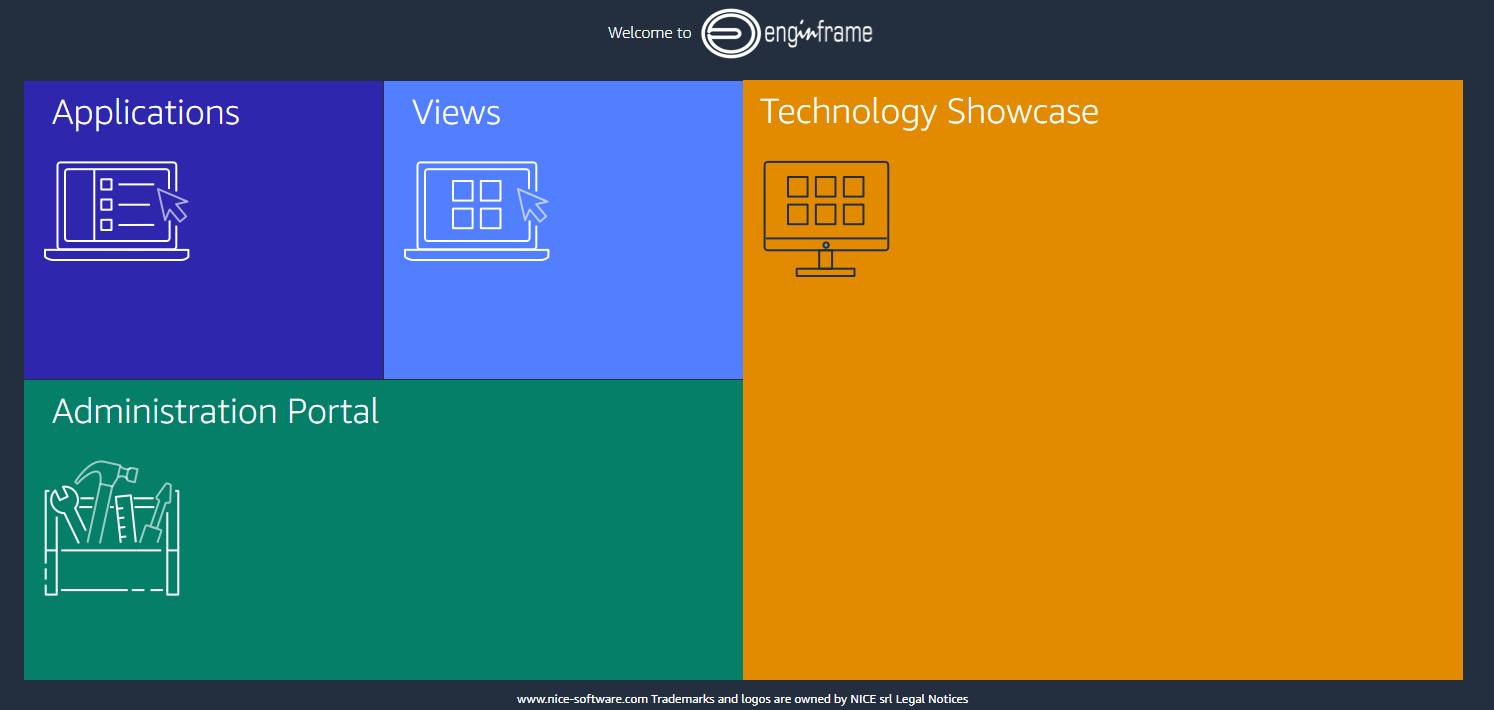
Then click on “Admin’s Portal” to the upper right:

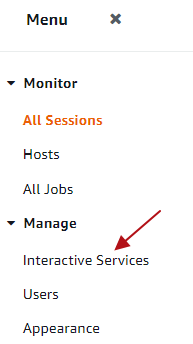
and then click on “Interactive Services” in the left menu:
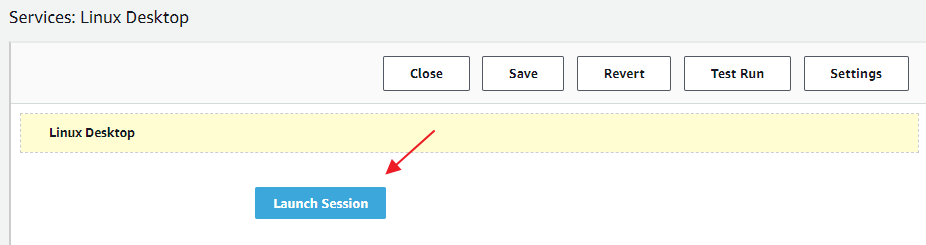
Click on the blue link of service you want to enable – e.g. “Linux Desktop” and then in the Service Editor on the “Launch Session” Button:
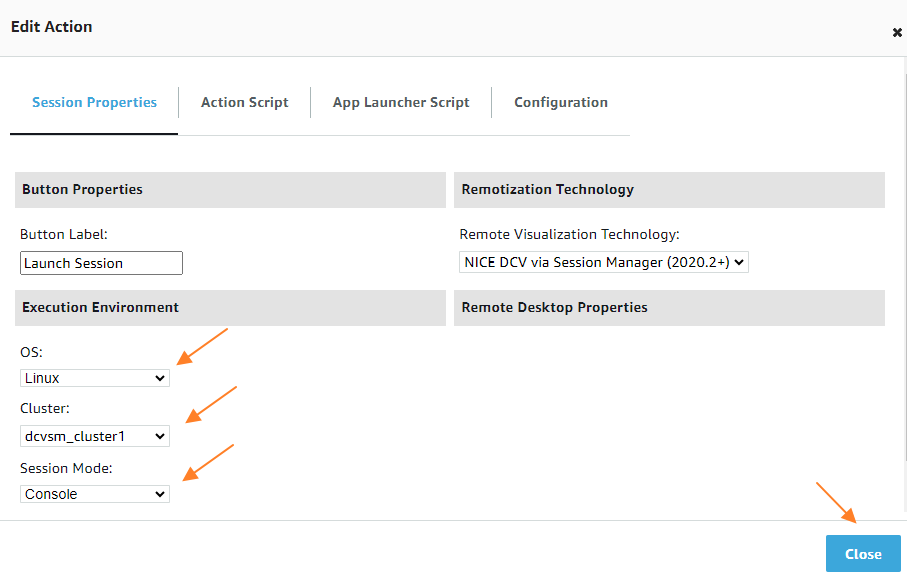
In the configuration you can configure and verify your OS, the Cluster to use and the Session Mode. Then click “Close” to confirm the values:
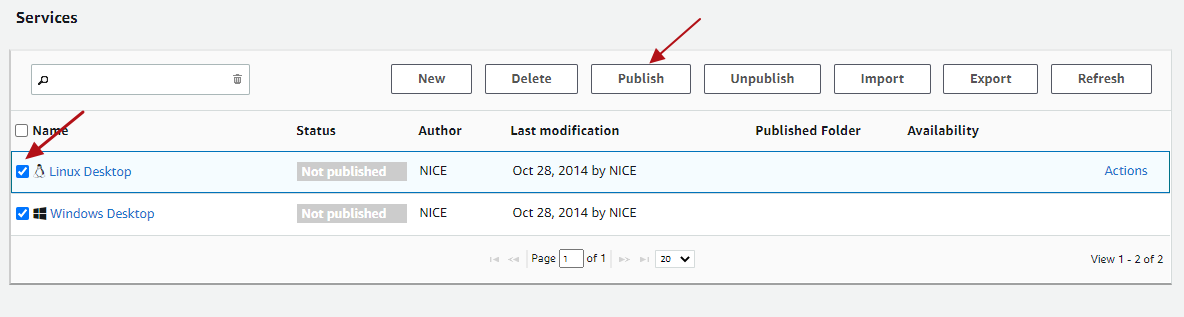
As next step you can “Save” and “Close” the service editor and you will see the services overview where you then can select and “Publish” the respective desktop services:
Switch to “User View” in the upper right and you can see the new service enabled in the left menu.
Configuring NICE DCV to use External Authentication of the DCV Session Manager Broker
With EF Portal Views Single-Sign-On (SSO) you can login to the DCV session automatically. EF Views will create a session token which is then verified by DCV using the Auth Token Verifier of NICE DCV Session Manager (SM) Broker.
In case of NICE DCV on Windows the configuration is in the registry. You can copy the broker self-signed CA to C:\Program Files\NICE\DCVSessionManagerAgent\conf\dcvsmbroker_ca.pem. For the auth-token-verifier please specify the URL for the token verifier on the Broker replacing the hostname in the example below:
REM Settings example
REM HKEY_USERS/S-1-5-18/Software/GSettings/com/nicesoftware/dcv/security/auth-token-verifier = https://ip-172-31-4-230:8445/agent/validate-authentication-token
REM HKEY_USERS/S-1-5-18/Software/GSettings/com/nicesoftware/dcv/security/ca-file = C:\Program Files\NICE\DCVSessionManagerAgent\conf\dcvsmbroker_ca.pem
REM HKEY_USERS/S-1-5-18/Software/GSettings/com/nicesoftware/dcv/security/no-tls-strict = 1

REM Powershell:
New-ItemProperty -Path "Microsoft.PowerShell.Core\Registry::\HKEY_USERS\S-1-5-18\Software\GSettings\com\nicesoftware\dcv\security" -Name auth-token-verifier -PropertyType STRING -Value "https://ip-172-31-4-230:8445/agent/validate-authentication-token" -Force
New-ItemProperty -Path "Microsoft.PowerShell.Core\Registry::\HKEY_USERS\S-1-5-18\Software\GSettings\com\nicesoftware\dcv\security" -Name ca-file -PropertyType STRING -Value "C:\Program Files\NICE\DCVSessionManagerAgent\conf\dcvsmbroker_ca.pem" -Force
New-ItemProperty -Path "Microsoft.PowerShell.Core\Registry::\HKEY_USERS\S-1-5-18\Software\GSettings\com\nicesoftware\dcv\security" -Name no-tls-strict -PropertyType DWORD -Value 1 -Force
In case of NICE DCV on Linux you can configure external authentication in /etc/dcv/dcv.conf (for ca-file, please specify the path to the broker’s self-signed CA copied to the host previously. For auth-token-verifier, specify the URL for the token verifier on the Broker replacing the hostname example below):
[security]
administrators=["dcvsmagent"]
ca-file="/etc/dcv-session-manager-agent/dcvsmbroker_ca.pem"
no-tls-strict=true
auth-token-verifier="https://ip-172-31-4-230:8445/agent/validate-authentication-token"
After the configuration please restart the DCV server. Any questions just let us know. Read more about NICE DCV.