Most of what EF Portal does out of the box covers a single cluster, a single scheduler, a single set of queues. That’s the right default: it’s what most HPC teams run, and it’s why the portal installs and upgrades without touching a job in flight. Enterprise deployments outgrow that default fast, though, and that’s exactly where NI SP’s HPC Services team spends its time. Not writing new product features, but engineering the specific configuration a production environment actually needs, on top of a platform built to take it.
Here are three builds our Professional Services team shipped this year. Each one started as a single customer request and became a reusable capability, documented and ready for any EF Portal deployment that needs it. Between them, they touch the three things that actually break when HPC goes from “one cluster, one team” to “the whole company runs on this”: visibility across infrastructure, control over who gets what, and cost that tracks real demand instead of worst-case planning. None of the three required a fork of the product or a bolt-on tool running alongside it. They’re extensions of the same portal your team already logs into.
Give one team visibility across every region they run in
Growing HPC estates rarely stay in one place. A department buys capacity in a second AWS region, another business unit spins up a cluster on a different account, and within a year the same organization is running HPC in three places with three separate portals and three separate login screens. One customer asked for something simpler: a single pane that shows what’s running and what’s available across every cluster the organization owns.
The result is a region selector, sitting top-right in the portal next to the user’s session controls, listing every configured region alongside what’s actually available there: AWS On-Demand Capacity Reservations, reserved instance types, GPU availability. EF Portal polls each remote cluster continuously and can notify a user the moment a resource they need frees up somewhere else. Click the region label, and the portal takes you straight to that cluster’s own instance. No separate login, no bookmarked URL to remember.

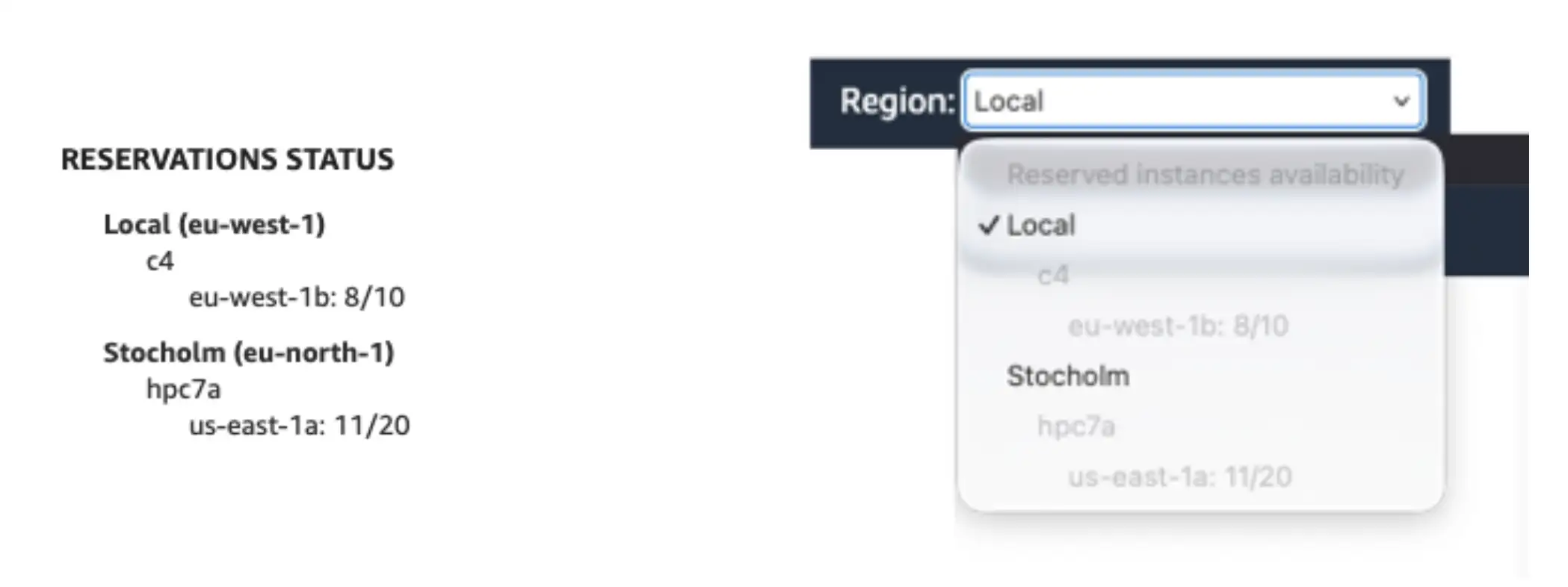
Reservation Status service on the left, region selector dropdown on the right.
Access defaults to administrators, but it’s a one-line change to extend it to any user group, and the same data is available as a standalone Reservation Status widget inside the job submission form itself. A user checks capacity before submitting, right where they’re already working, instead of finding out twenty minutes into a queue wait that another region had hardware free the whole time.
Remote data can also be filtered down to what actually matters for a given group: GPU availability, specific application license tokens, or a particular instance type, so a widget built for a rendering team doesn’t clutter their view with capacity data meant for CFD jobs.
Configuration is just as light on the admin side: one row per region, in the format <AWS region id>:<region name>:<target portal URL>, added through a dedicated Configuration service inside the portal. No file system access, no restart, no ticket to IT.
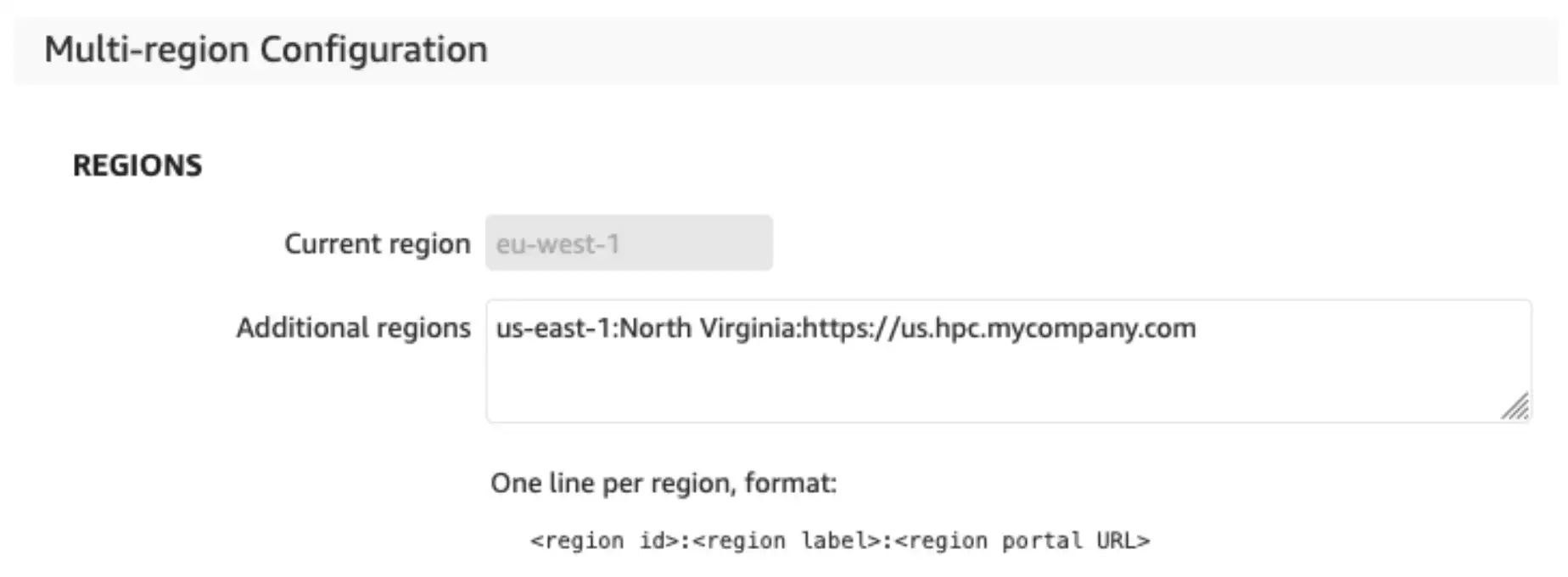
Additional regions configuration in Multi-region Configuration portal service.
The benefit compounds with scale. A team running two regions gets convenience when a team running five gets a real capacity-planning tool: instead of five admins independently guessing where the free hardware is, the portal tells everyone at once, and users route their own jobs to wherever the queue is shortest.
Let admins govern queues without slowing anyone down
EF Portal already ties into your scheduler’s queue structure, and it already respects your Users and Groups permissions. Put the two together and you get something enterprise teams ask for constantly: the ability to enforce which queues a given user can submit to, based purely on who they are.

For one customer running mixed workloads across a large user base, that meant routing standard users to cost-controlled queues (AWS EC2 On-Demand Capacity Reservations, specifically) while power-user groups kept access to less restricted, higher-priority ones. No custom wrapper scripts around qsub. No separate approval workflow living in a spreadsheet somewhere. Just group membership doing the work the scheduler doesn’t do on its own.
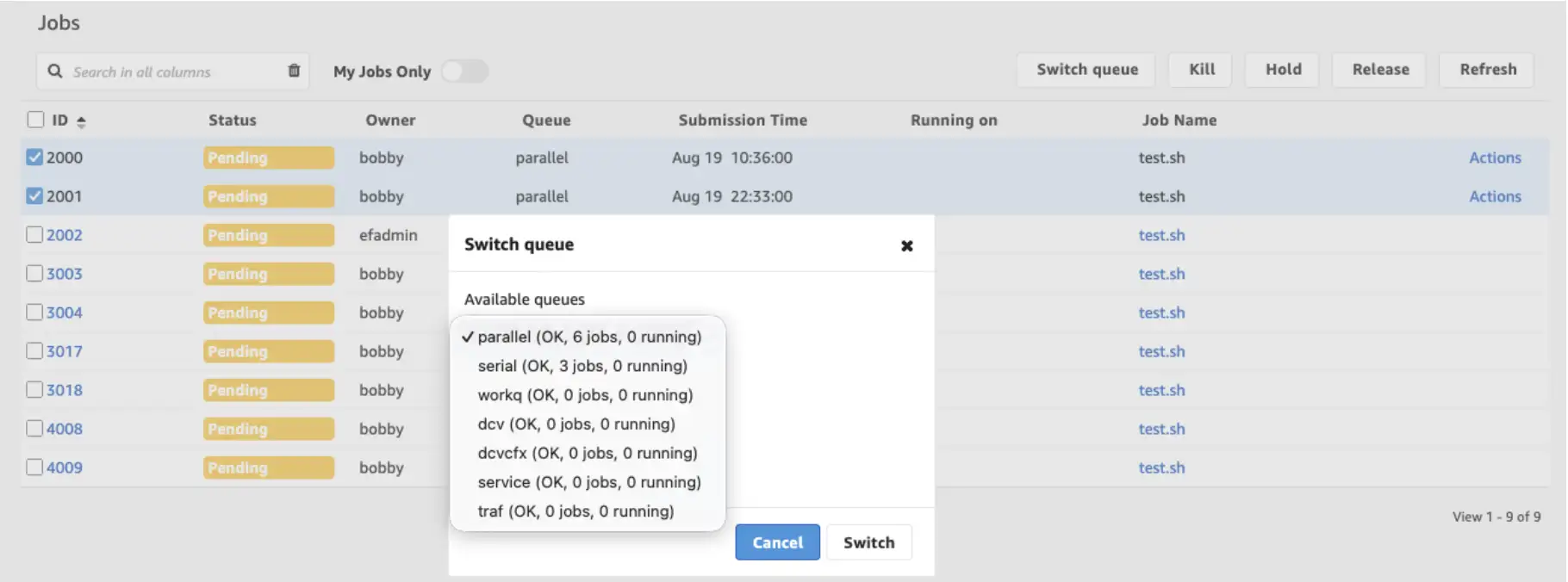
Switching pending jobs from a restricted queue to a more resource-relaxed one, from the All Jobs page (administrators only)
The part administrators use daily is smaller but just as useful. Restricted queues mean longer wait times when priorities move, so we added a Switch queue action to the All Jobs page, visible only to admins. Select one job or fifty, pick the target queue from a live list showing current load per queue, and they move instantly, no resubmission, no user involvement. It’s the kind of button that looks trivial in a screenshot and becomes essential the day a deadline moves up and an admin needs to reprioritize forty pending jobs in one click instead of one at a time.
Keep Windows DCV fleets sized to actual demand, automatically
Linux HPC clusters have had elastic scaling for years: schedulers spin nodes up and down against queue depth, and nobody thinks twice about it. Windows DCV fleets historically haven’t had the same luxury, mostly because each Windows instance hosts exactly one DCV session. That one-to-one relationship makes the scaling math different from a generic compute node, and most teams end up either over-provisioning for the busiest day of the month or scaling by hand.
We built a dynamic scaling component that closes that gap for one customer’s Windows DCV fleet. It watches the AWS Auto Scaling Group behind the fleet, checks active sessions against total capacity every five minutes through the DCV Session Manager Broker, and adjusts desired capacity against configurable thresholds:
- Automatic scale-out when demand increases
- Automatic scale-in when demand decreases
- Preservation of a minimum number of persistent nodes
- Enforcement of a maximum number of nodes (persistent + scaled)
- Safe execution via locking to prevent rapid consecutive changes
- Support for dry-run and active modes
Cross the upper threshold, and it adds nodes. Drop below the lower one, and it removes them, but never below a persistent floor, so the capacity already paid for through Reserved Instances or a Savings Plan always stays up.
A typical configuration looks like this:
persistent_nodes=50(the guaranteed floor)scale_out_at=90(add capacity once occupancy crosses 90%)scale_out_nodes=5(how many nodes join per event)max_scaled_nodes=25(the hard ceiling)scale_in_at=50andscale_in_nodes=5for the reverse.
Every one of those is a parameter, not a hardcoded assumption, so the same component tunes to a fleet of 55 nodes or 550. A locking mechanism stops the system from making rapid, conflicting changes back to back, and a dry-run mode lets a team watch the logic decide what it would do before it’s allowed to touch real infrastructure.
For teams running Windows DCV at any real scale, that’s the difference between provisioning for peak demand year-round and paying only for the capacity actual sessions are using, week to week.
Where this fits in your environment
In practice, exploring such cases usually starts as a short scoping conversation. A customer describes what’s slow, manual, or duct-taped together today, our engineers map it against what EF Portal already exposes (its APIs, its configuration services, its hook system), and most of the time the gap turns out to be smaller than expected. Each of the three builds here extended existing architecture rather than requiring something designed from scratch, which is exactly what keeps this kind of engagement fast.
If any of these problems sound familiar (multiple clusters with no shared view, queues that need policing by hand, a Windows fleet sized for the worst day instead of the average one) the most efficient fix usually is configuration and engineering on top of what you already run, not a brand new product.
Get in touch with our HPC Services to talk through your setup, or explore what it’s built on: EF Portal and DCV.