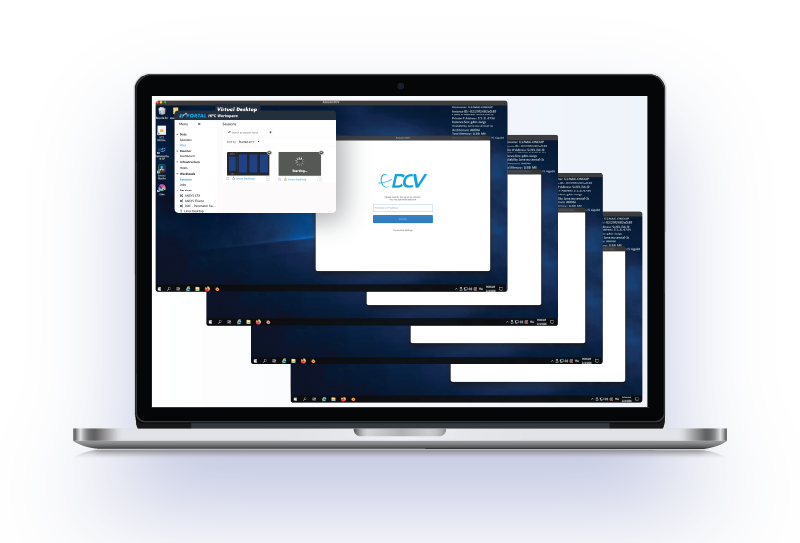
An engineer on a thin laptop can run a live Ansys simulation visualized on a cluster GPU in a remote datacenter, with the color fidelity and low latency of a local workstation, and none of the simulation data ever moving off the server. Multiply that by tens or hundreds of concurrent users, and you get VDI as it works in HPC: a managed streaming protocol that connects directly to physical Linux GPU servers and sends rendered frames to whatever device the user is holding.
The term creates confusion because VDI means something genuinely different in classic IT and in HPC. This article covers the HPC interpretation: what it is, how it works alongside job schedulers and HPC portals, and what to evaluate when you’re selecting a solution.
What VDI means in CLASSIC IT
Virtual Desktop Infrastructure (VDI) is the general term for delivering a desktop environment from a central server rather than from the machine in front of the user. The server does the processing; the user’s device renders only what the server sends.
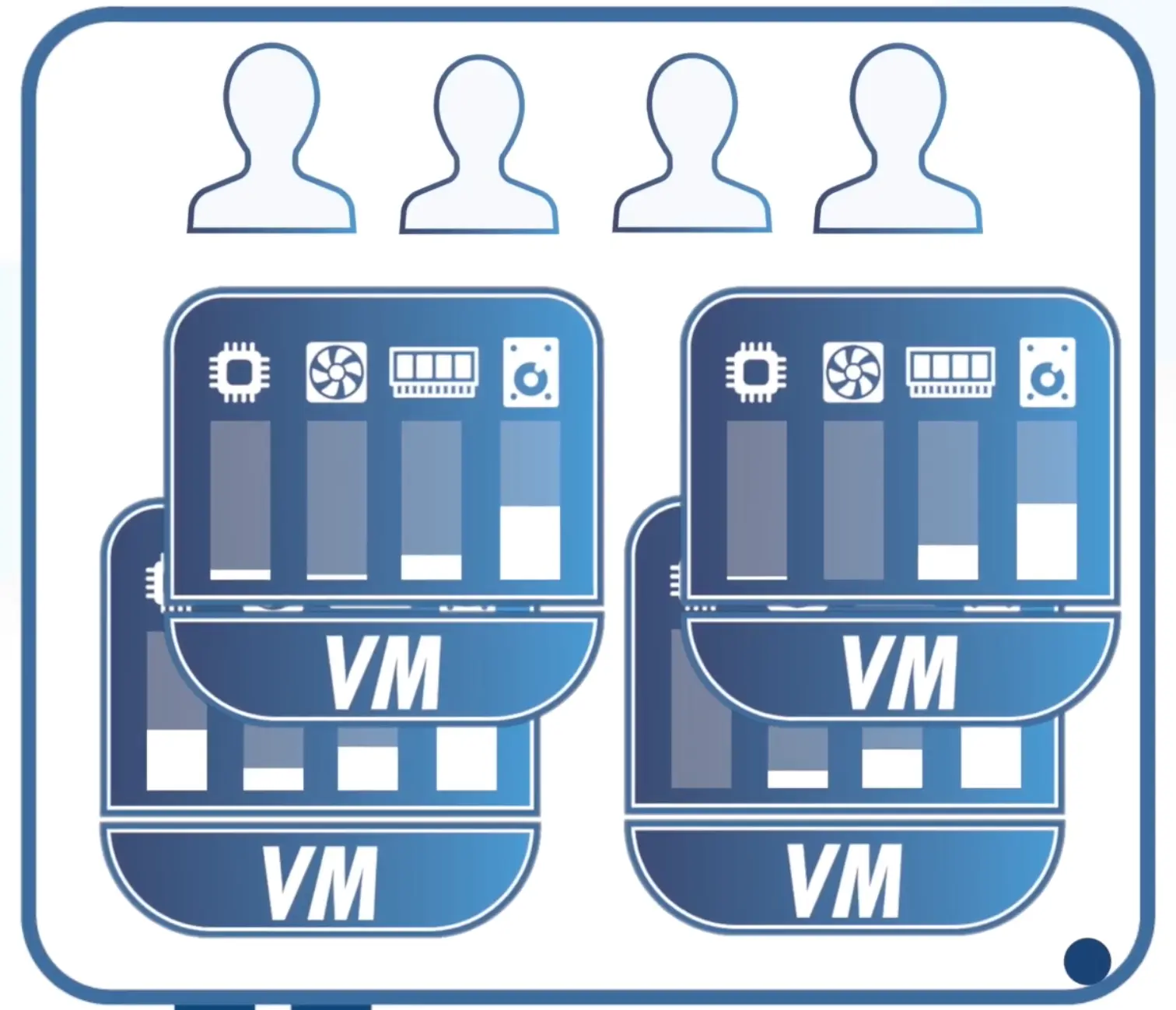
The classic VDI stack runs on hypervisors. A physical server hosts multiple Windows virtual machines (one per user, or pooled) managed through Citrix, VMware Horizon, or a similar platform. Adding GPU acceleration to that stack means NVIDIA Grid licenses, vGPU drivers per VM, and a hypervisor layer sitting between the application and the GPU hardware.
For office workloads, the overhead is manageable. For GPU-intensive simulation, seismic visualization, or VFX rendering on Linux, that overhead adds cost and latency with no corresponding benefit. The hypervisor is solving a problem HPC teams don’t have.
What HPC USERS need from VDI
HPC environments run on bare-metal Linux. GPU servers are physical machines with NVIDIA A-series or RTX cards, managed by SLURM, PBS, or LSF, running applications like Ansys, CATIA, OpenFOAM, or Maya. There is no Windows intermediary in the workflow, and no reason to introduce one for remote access.
When HPC teams talk about VDI, they mean one specific thing: GPU-accelerated interactive desktop sessions on those same physical Linux servers, available remotely, without touching a virtual machine or a vGPU license.
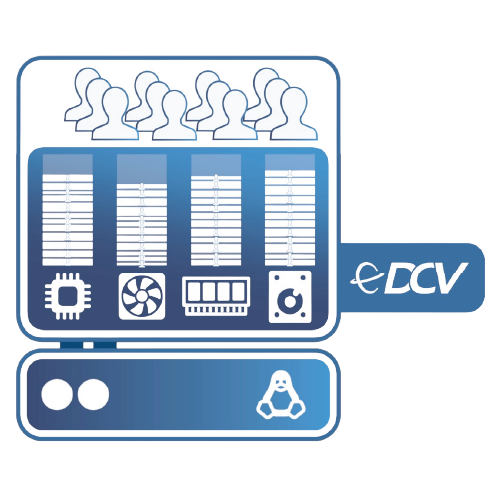
The architecture for this is simpler than the ‘classic VDI’ equivalent. A remote desktop protocol connects directly to the physical GPU server. The GPU runs the application at full speed. The protocol captures the rendered output and streams it to the user’s device, adapted for current network conditions. The compute stays on the server; only pixels leave.
CLASSIC VDI
HPC VDI
Architecture
Hypervisor + VMs
Bare-metal Linux, no VMs
GPU access
NVIDIA Grid / vGPU licenses
Direct GPU, no vGPU required
OS
Windows VMs
Native Linux
Typical platform
Citrix, VMware Horizon
DCV
Protocol
RDP / ICA over VM
GPU streaming protocol
The HPC community often calls this remote visualization, which is a more accurate name for what’s actually happening.
How many VDI sessions could your cluster support?
Adjust the inputs to estimate concurrent GPU sessions on your existing hardware.
8 per server · Ansys at ~6 GB/session · 3 servers
That is 24 engineers with workstation-grade GPU access, on your existing hardware.
No virtual machines. No vGPU licenses. DCV connects directly to the physical GPU server and streams rendered frames to any device.
Try DCV on your cluster →How GPU-accelerated remote visualization works
DCV (now Amazon DCV, formerly NICE DCV), distributed by NI SP, is the protocol built for this use case. It connects to physical Linux GPU servers with no hypervisor layer and no vGPU licensing required. A single GPU server with 48GB of VRAM supports 10 to 15 concurrent full-performance 3D desktop sessions, each with independent GPU memory allocation. The exact number scales with VRAM and the application's per-session memory footprint.
Beyond raw streaming, a few protocol properties matter specifically for HPC:
- Bandwidth adaptation. Session quality adjusts automatically to available bandwidth, so users on WAN links get a usable session rather than a degraded or frozen one. RVX, an Icelandic VFX studio, uses DCV for team members connecting from mainland Europe. Their CTO described the transatlantic session quality as "the best they had seen so far": a result that holds because the protocol was designed for production WAN conditions, not LAN demos.
- Color fidelity. For simulation visualization and VFX, color accuracy is not aesthetic: it affects decisions. DCV supports 4:4:4 chroma and a lossless mode for applications where compressed color would introduce errors in what users see on screen.
- Data stays on the server. Pixels leave the server, AES-256 encrypted. The simulation files, models, and output datasets don't. For large datasets that cannot practically move over the network, and for compliance environments where data residency matters, this architecture is what makes remote access viable.
- Broad client support. HTML5 browser, native clients for Windows, macOS, and Linux, and support for up to 4×4K monitors.
Where VDI fits in the HPC workflow
Interactive VDI sessions and batch job submission are complementary, not competing.
A typical CFD workflow: submit an overnight Ansys computation through the job scheduler as a batch job. The next morning, log in to visualize the result, adjust parameters, and submit the next iteration. The visualization and parameter-adjustment step needs an interactive GPU session. The overnight compute run doesn't.
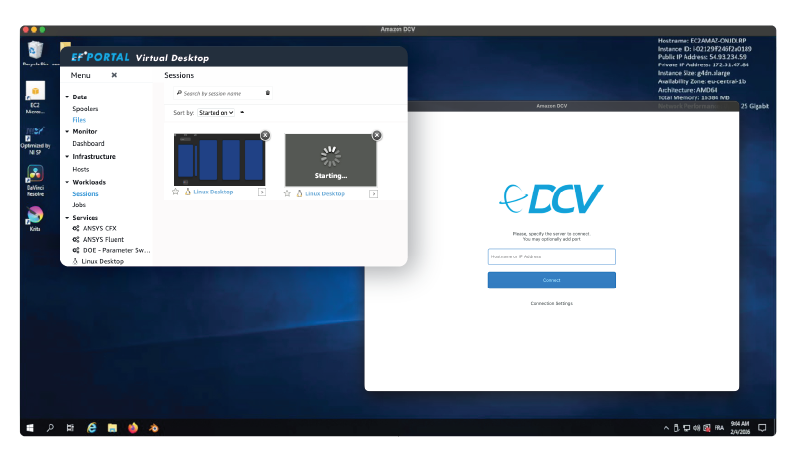
EF Portal, the HPC portal developed by NI SP, manages both from a single interface:
- Users see their queued batch jobs and their running VDI sessions in the same browser dashboard.
- They can launch a DCV remote desktop from the same interface where they submitted the job, without a separate login or a separate tool. Same authentication, same file management, same monitoring view.
That integration shifts VDI from a convenience to an operational requirement at scale. At that volume, moving cleanly between batch submission and interactive visualization without switching systems is a real throughput question, not a preference.

Did you know?
5 of the 10 current Formula 1 teams run their simulation workflows through EF Portal!
If your team is still working out whether an HPC portal makes sense at all, Do you actually need an HPC portal? walks through that decision with a practical self-test.
For teams whose workflow is VDI-first (without batch job scheduling) EF Views covers that scope without the HPC portal overhead.
Managing VDI access at scale
Connecting a single user to a single DCV server is straightforward. At scale (more than a handful of GPU servers, users in multiple locations, access from outside the company network) you need a management layer for authentication, connection routing, and session monitoring.
For pure VDI deployments, NI SP offers two solutions that cover different layers of the stack:

DPM (DCV Pool Manager) is NI SP's access management layer for DCV fleets. It handles user authentication (MFA, LDAP, Active Directory, PAM), connection routing to an assigned workstation or a shared pool, and a DCV Connection Gateway that keeps GPU servers off the public internet. Real-time session telemetry (round-trip time, bandwidth, packet loss) is visible in a Grafana dashboard. Nothing installs on the DCV servers themselves; DPM integrates directly with the DCV Gateway without agents on compute nodes.
"DCV is the engine, DPM is the fleet manager." That pairing is what makes GPU-accelerated remote visualization operationally manageable across larger teams.

For teams that want a user-facing web portal for VDI sessions specifically, EF Views covers that scope. Users log in once via SSO (LDAP/AD) and get a browser-based interface to launch, monitor, and resume their DCV sessions on Windows or Linux, without IT involvement. Admins get a consolidated view of all active sessions, hosts, and services. EF Views integrates natively with DCV Session Manager and supports QUIC UDP for high-latency connections. DPM operates at the network and authentication layer; EF Views is the portal experience on top: the two complement each other and can be deployed independently or together.
For teams that also need batch job scheduling alongside VDI, EF Portal integrates both in a single interface: covered in the Where VDI fits in the HPC workflow section above.
What to look for when you assess HPC VDI
Four criteria that most classic VDI checklists miss, because they were written for Windows environments.
- Linux-native support. If your simulation workloads run on Linux, the protocol must connect natively to Linux GPU servers. Solutions that route through a Windows virtual machine to reach Linux add the hypervisor overhead that makes classic VDI expensive for HPC in the first place.
- GPU sharing model. Each user can have a dedicated physical server, or multiple users can share a single server with independent GPU memory allocation. Shared-GPU deployments offer substantially better hardware economics when users don't all run peak-load sessions simultaneously, which is typical of most HPC teams.
- Color fidelity. For CFD results, seismic interpretation, or VFX work: confirm lossless mode and 4:4:4 chroma support before signing. A protocol that compresses color corrupts what your users see and the decisions they make from it.
- WAN performance. Remote and hybrid teams need a protocol tested under real network conditions. Run a trial from the actual locations your users connect from, not a LAN benchmark in the same building as the server.
- Self-service session management. As team size grows, the protocol alone isn't enough: look for a web-based portal with SSO (LDAP/Active Directory), DCV Session Manager support, and user-facing session lifecycle controls. Without it, every connection request becomes an IT ticket.
If you're moving from HP Anyware, our DCV vs HP Anyware comparison covers the feature-by-feature differences relevant to that migration.
Try it on your cluster
DCV installs in under 10 minutes on any Linux server with an NVIDIA GPU. A 30-day free trial gives enough time to let your actual users connect to actual workloads: the only measure that matters is session quality in their application on their hardware, not a benchmark.
For teams already running EF Portal: DCV VDI sessions integrate directly into the portal interface. Users launch their remote desktop from the same browser window they use for batch submission, once the DCV integration is configured in the portal admin settings.
Enterprise Pool Management

High-end Remote Desktops
The Enterprise VDI Portal
SEE VDI IN ACTION
DCV Pool Manager
SETUp DCV IN 1min
EF HPC & VDI Portal
Frequently asked questions
What is VDI for HPC?
VDI (virtual desktop infrastructure) in the HPC context means GPU-accelerated remote desktop sessions connected directly to physical Linux GPU servers, using a streaming protocol. Unlike classic VDI, which runs on hypervisors with Windows virtual machines, HPC VDI requires no hypervisor layer, no virtual machines, and no vGPU licenses. The GPU server runs the application; the protocol streams the rendered output to the user's device.
What is the difference between VDI and remote visualization?
Remote visualization is the more precise term for what HPC teams typically mean by VDI: streaming rendered GPU output from a server to a remote client, without a virtual machine or hypervisor intermediary. Classic VDI implies a broader infrastructure stack (hypervisors, Windows VMs, Citrix or VMware). In HPC, both terms appear, but remote visualization describes the architecture more accurately.
What is a VDI portal?
A VDI portal is a web interface that sits above the streaming protocol and handles session lifecycle management. Users log in once via SSO and can launch, monitor, and resume their remote desktop sessions from a browser without filing an IT ticket; admins get a consolidated view of all active sessions, hosts, and GPU resources across the fleet. Without one, remote desktop access typically means manual connection provisioning per user, which does not scale past a small team.
EF Views is NI SP's dedicated VDI portal: single sign-on (LDAP/Active Directory), browser-based session management for Windows and Linux desktops, and native DCV Session Manager integration. Teams that need VDI sessions and batch job scheduling in the same interface use EF Portal instead.
Do you need vGPU licenses for HPC VDI?
Not with DCV. DCV connects directly to the physical GPU on a Linux server, without NVIDIA Grid or vGPU licensing. Multiple users share the same physical GPU with independent memory allocation, at full GPU performance, on bare-metal Linux. vGPU licenses are required for hypervisor-based VDI stacks (Citrix, VMware Horizon with GPU passthrough), but that is not the typical HPC deployment model.
How many users can share one GPU server?
10 to 15 concurrent full-performance 3D desktop sessions per GPU server is a common range. The exact number depends on GPU VRAM (a 48GB card supports significantly more sessions than a 16GB card), application memory footprint per session, and whether users all hit peak load simultaneously. A short test with your actual application on your actual hardware is more reliable than any general benchmark.
How does VDI connect to an HPC portal?
EF Portal integrates DCV sessions directly into the portal interface. Users launch a VDI session from the same browser dashboard they use for batch job submission: same authentication, same file management, same job monitoring view. The portal handles the VDI session lifecycle, so admins manage interactive sessions alongside batch workloads without separate tooling.
For teams focused exclusively on VDI session management (without batch job scheduling), EF Views is the purpose-built alternative: same DCV integration and SSO, without the HPC portal layer.
RESOURCES
- EF Portal - HPC Portal
- EF Views - VDI Portal
- DCV Remote Desktops
- DCV Pool Manager
- Do you need an HPC Portal? Get your HPC Portal fit score.
- EnginFrame to EF Portal FAQ
- What's New in EF Portal 2026.0 (EF Portal 2026.0 Release video)
- How to install EF Portal (Guide)
- EF Portal or Open OnDemand: Which is the right portal for your HPC?
- Video Walkthrough